

Ask an AI about this page
 ChatGPT
 Claude
 Perplexity
 Google AI Mode
 Microsoft Copilot
 Grok
Grok Mistral Le Chat
How your customer pays with DuitNow QR
With DuitNow QR, your customer scans one QR code with their banking app or e-wallet and pays you. These are the screens of the most common e-wallets. Use them to help a customer who asks how to pay.
The screens are examples from August 2024. The app makers can change their screens. The shop name, amounts and numbers in the pictures are samples.
E-wallets
Section titled “E-wallets”In each e-wallet, the customer does the same 3 things:
- Scan the DuitNow QR code at your checkout or counter.
- Check that the shop name and the amount are correct.
- Confirm the payment. Some apps ask for a PIN, a fingerprint or a face scan.
The app then shows that the payment is successful. Bayarcash sends the result to your shop, and the payment shows in Transactions.
ShopeePay
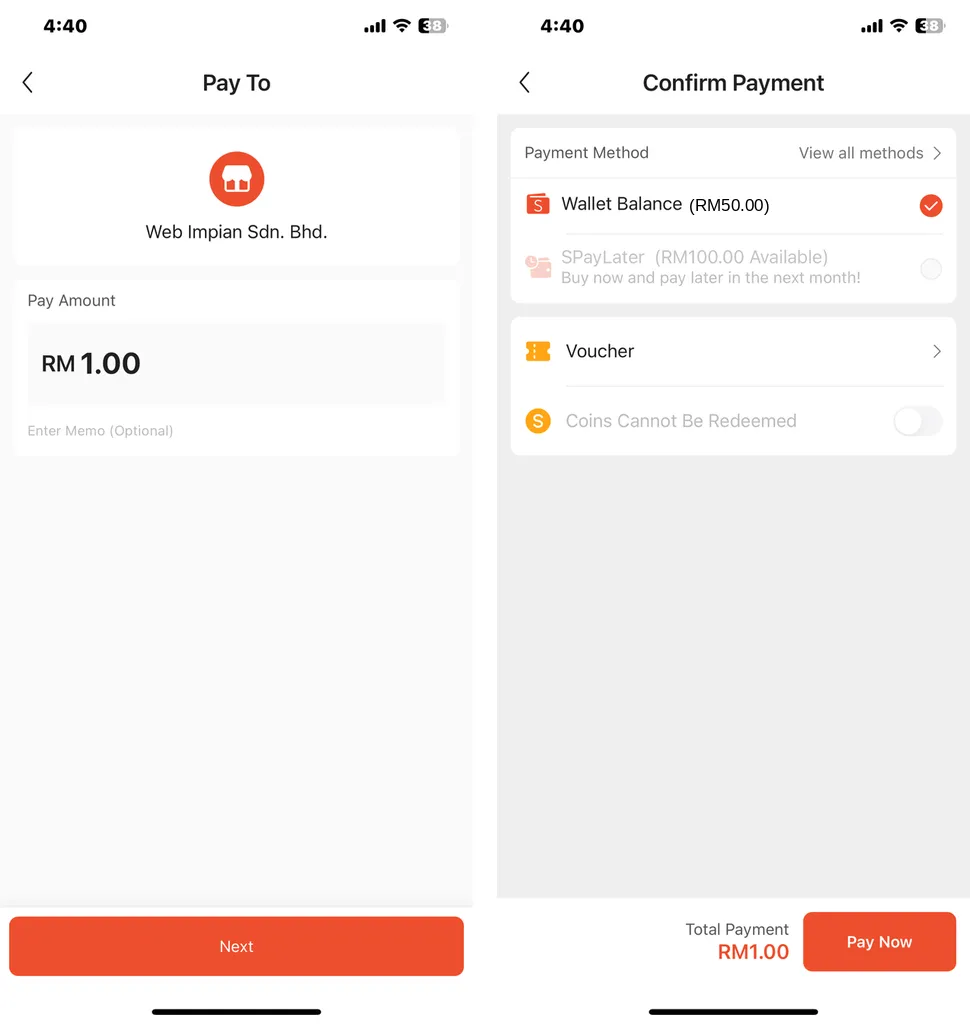
Section titled “ShopeePay”On Pay To, the customer checks the shop name and the amount and taps Next. On Confirm Payment, they choose Wallet Balance and tap Pay Now.
GrabPay
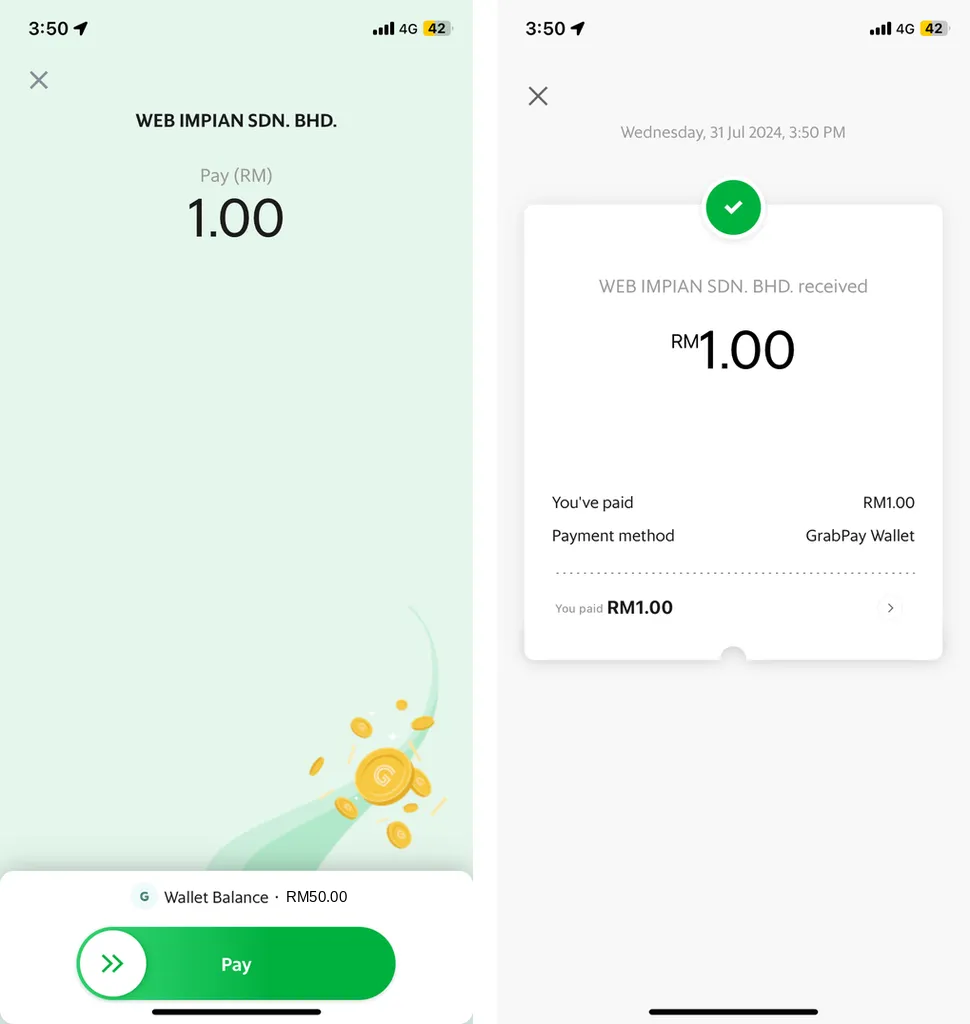
Section titled “GrabPay”The customer checks the shop name and the amount, then slides Pay. GrabPay then shows that the shop received the payment.
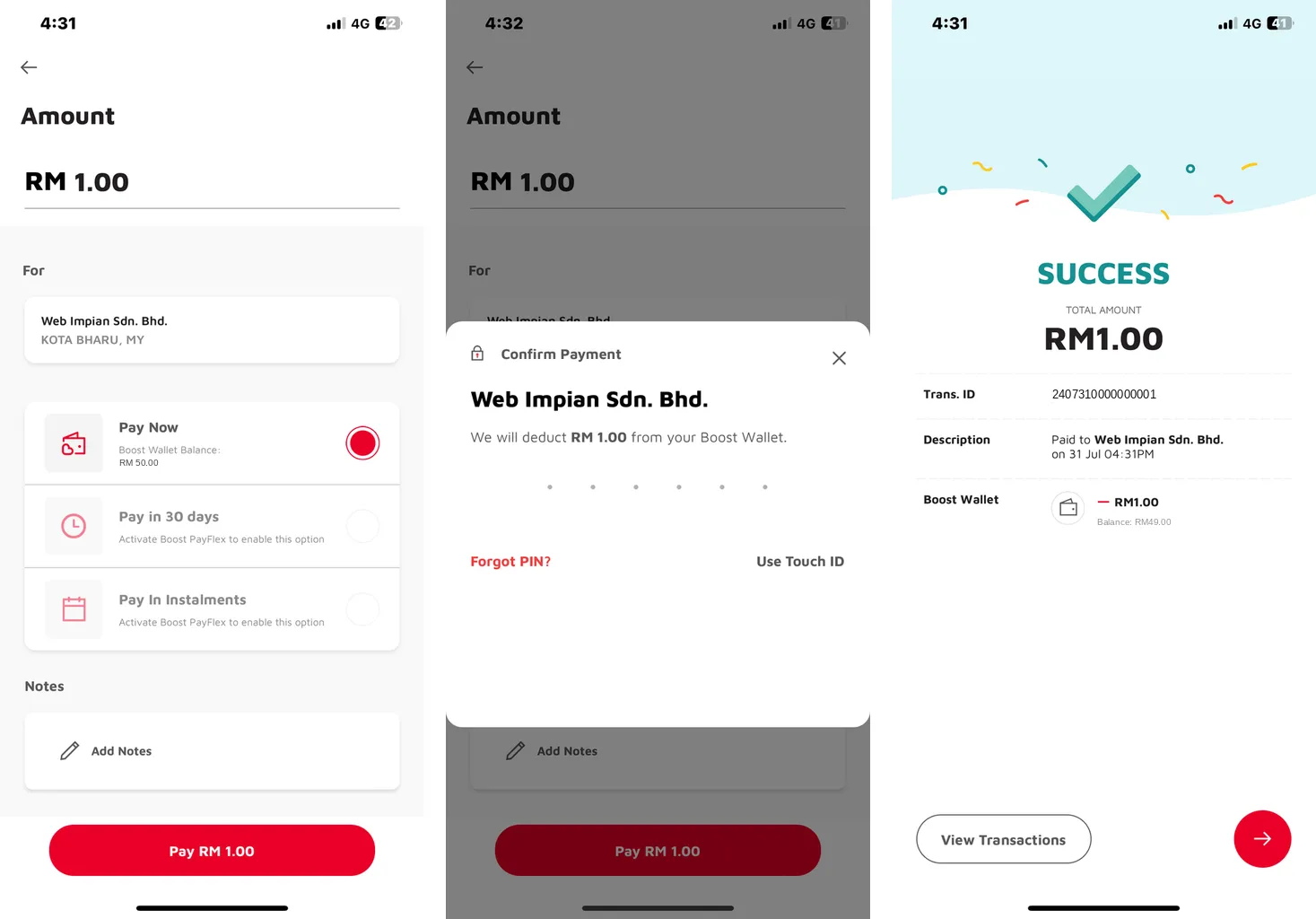
On Amount, the customer chooses Pay Now and taps Pay RM 1.00. On Confirm Payment, they enter their PIN or tap Use Touch ID. Boost then shows SUCCESS.
Touch ’n Go eWallet
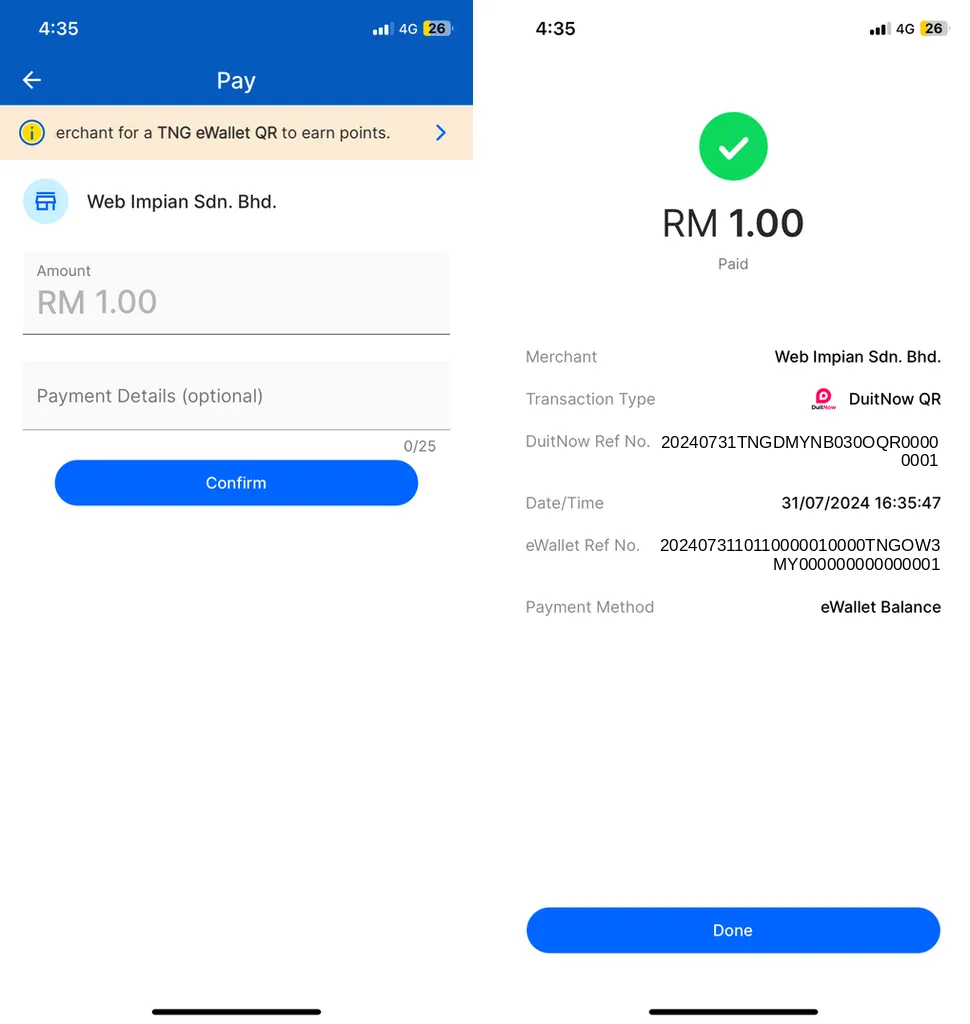
Section titled “Touch ’n Go eWallet”On Pay, the customer checks the shop name and the amount and taps Confirm. The receipt shows DuitNow QR as the transaction type. They tap Done.
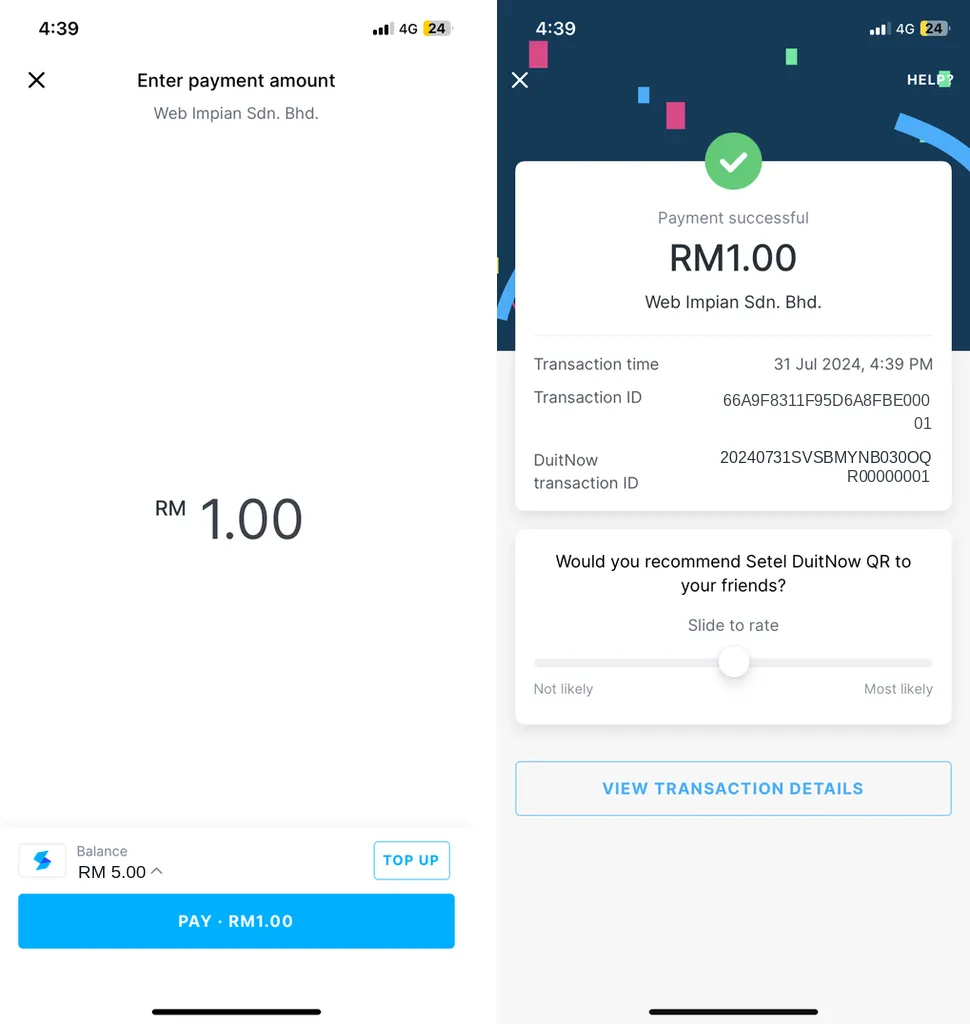
On Enter payment amount, the customer checks the amount and taps PAY · RM1.00. Setel then shows Payment successful.
BigPay
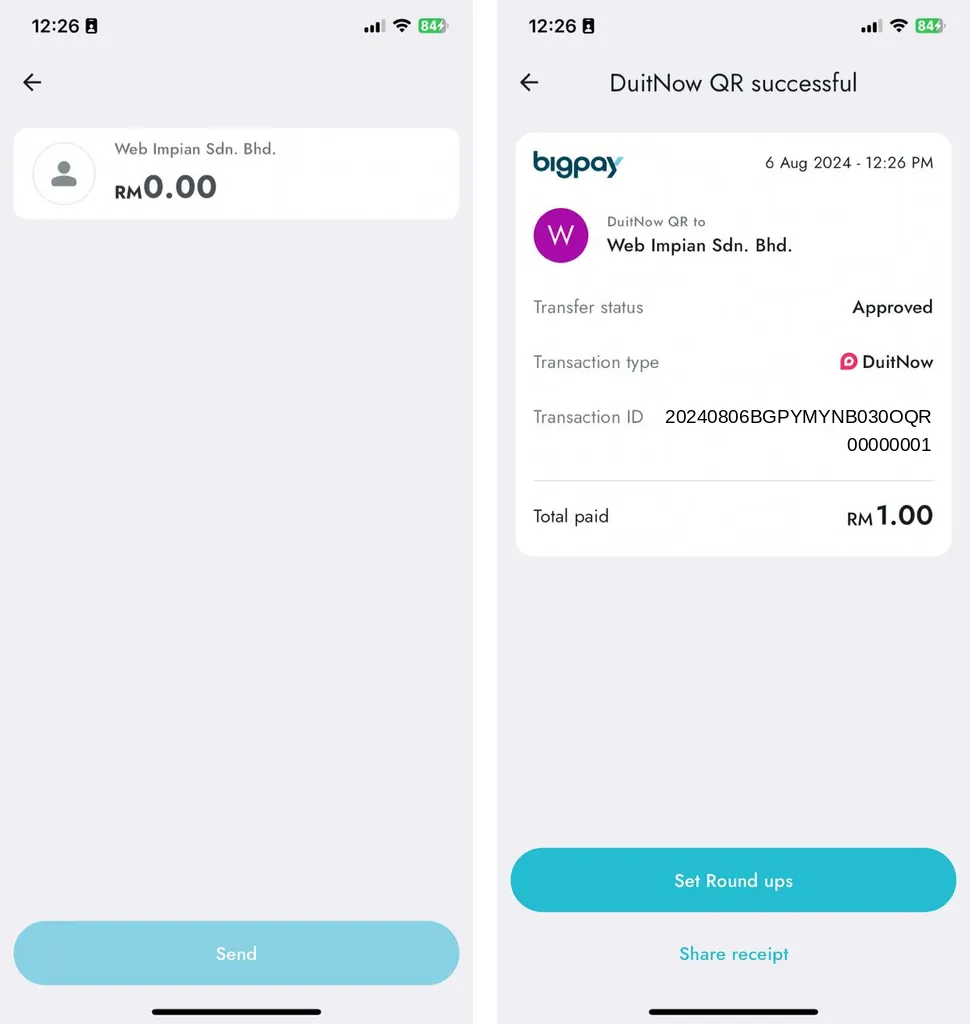
Section titled “BigPay”The customer checks the amount and taps Send. BigPay then shows DuitNow QR successful. The screen below is from 2024 and shows an empty amount field. With a Bayarcash QR, the amount is already in the QR.
Buy now, pay later
Section titled “Buy now, pay later”Your customer can also scan the DuitNow QR code and pay later in instalments. The steps start the same as an e-wallet payment.
SPayLater
Section titled “SPayLater”SPayLater is in the ShopeePay app.
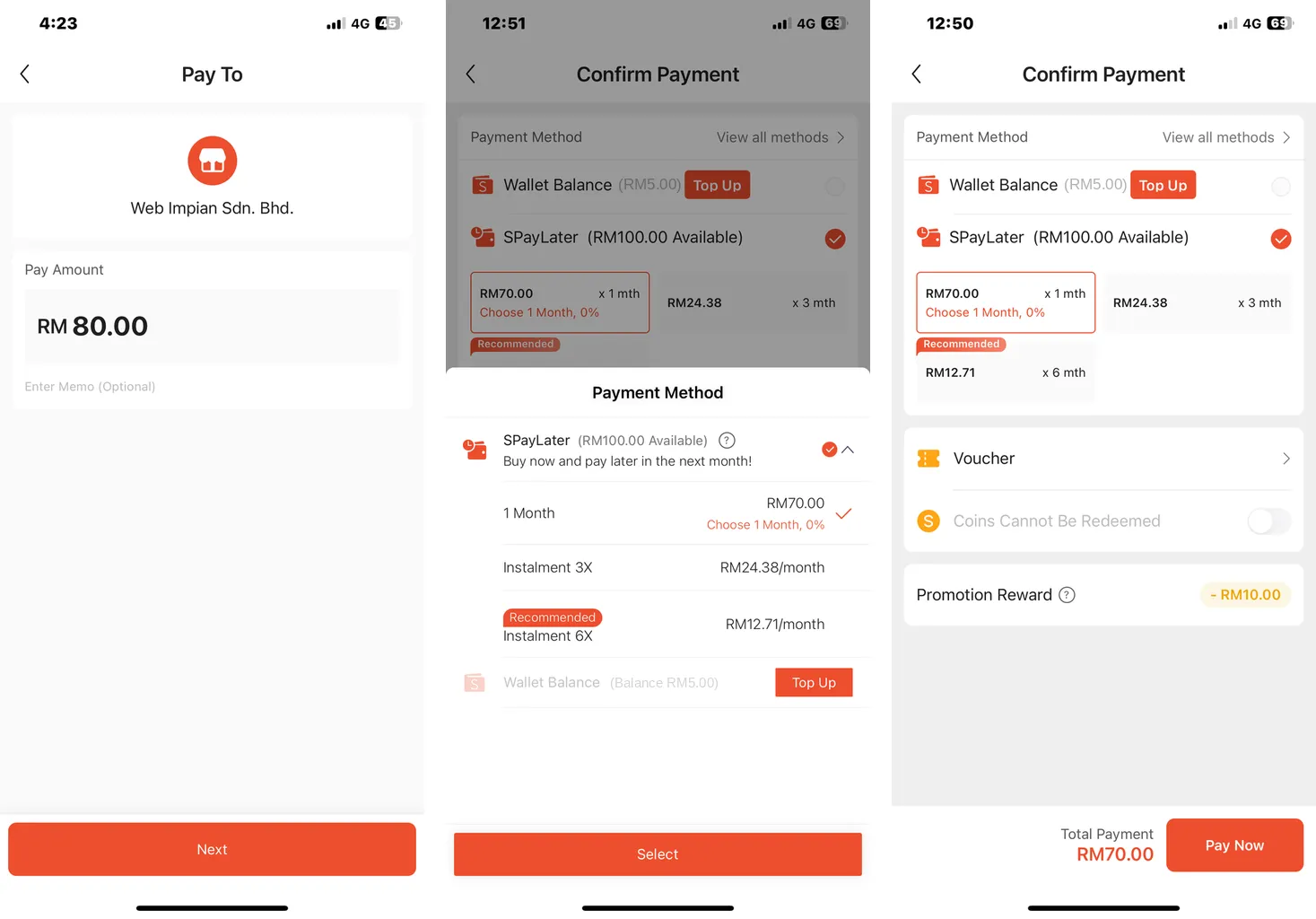
- On Pay To, the customer checks the amount and taps Next.
- On Confirm Payment, they choose SPayLater.
- They choose a plan, for example 1 Month or Instalment 3X, and tap Select.
- They tap Pay Now.
Boost PayFlex
Section titled “Boost PayFlex”Boost PayFlex is in the Boost app.
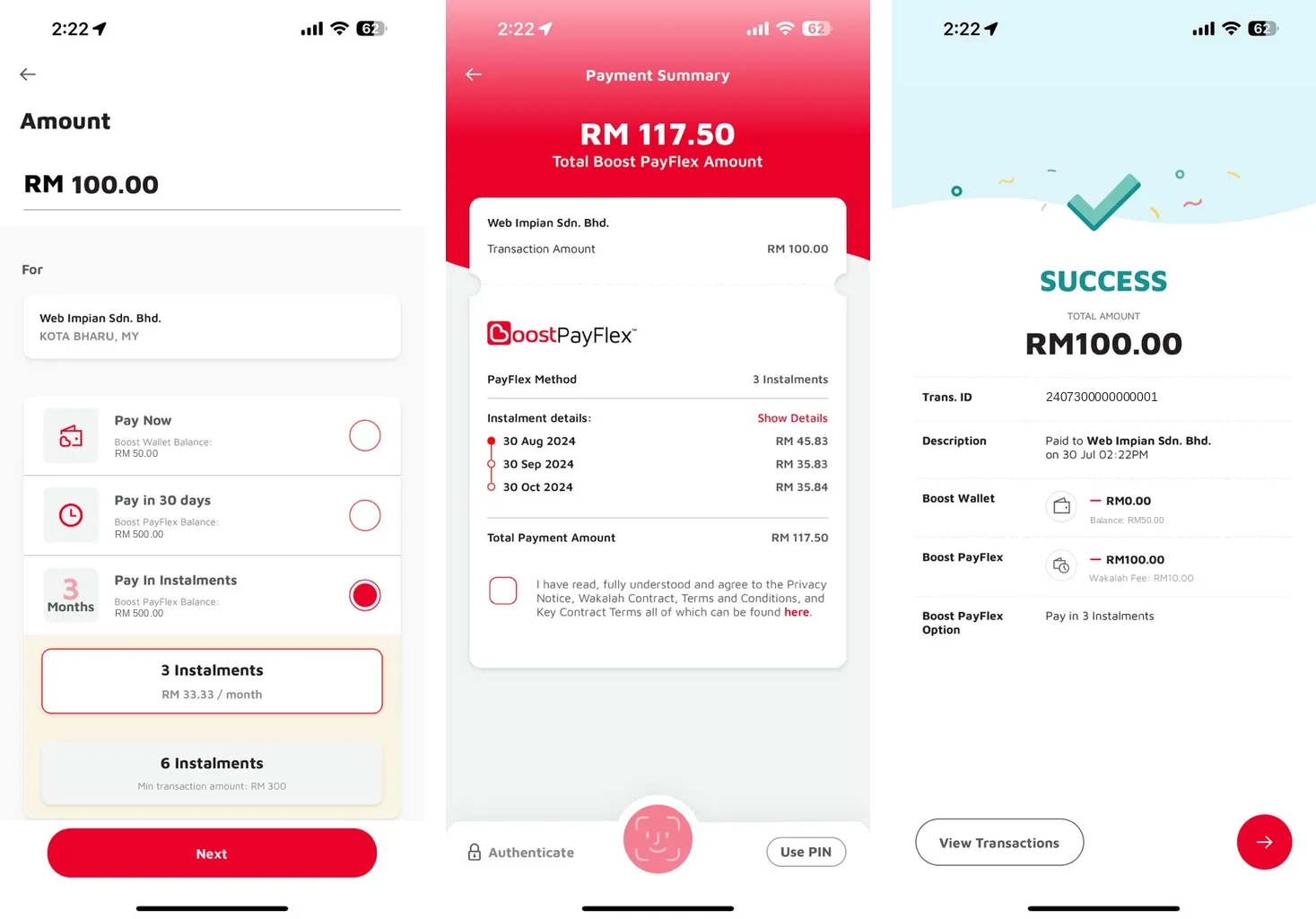
- On Amount, the customer chooses Pay in 30 days or Pay In Instalments, then the number of instalments. They tap Next.
- On Payment Summary, they read the instalment dates and amounts and tick the agreement box.
- They confirm with their face, or tap Use PIN.
- Boost shows SUCCESS.
Common issues
My customer uses an app that is not in this guide. Can they pay?
Yes, if the app can scan a DuitNow QR code. The steps are almost the same: scan, check your shop name and the amount, then confirm.
My customer paid, but I cannot see the payment. Where do I look?
Open Transactions in the merchant dashboard and look for the payment. See Transactions. If the payment failed, see Why did my payment fail?.
Was this article helpful?
Thanks for your feedback.
Sorry this didn't help. WhatsApp us and we'll sort it out with you.