

Ask an AI about this page
 ChatGPT
 Claude
 Perplexity
 Google AI Mode
 Microsoft Copilot
 Grok
Grok Mistral Le Chat
Request a split payment for a portal
A split payment divides one customer payment between more than one merchant. You set it for each portal. The Bayarcash Payout team checks each request and approves it by hand. The portal can split payments only after the approval.
Request a split payment
Section titled “Request a split payment”Do this for the portal that must split its payments.
- Sign in to the merchant dashboard.
- In the top menu, choose Portals, then choose Portals again.
- In the Action column of the portal, choose the icon Edit portal. The Edit Portal page opens.
- Find Enable Split Payment?. You cannot tick this box yourself.
- Choose Request for Split Payment.
- Follow the instructions on the screen.
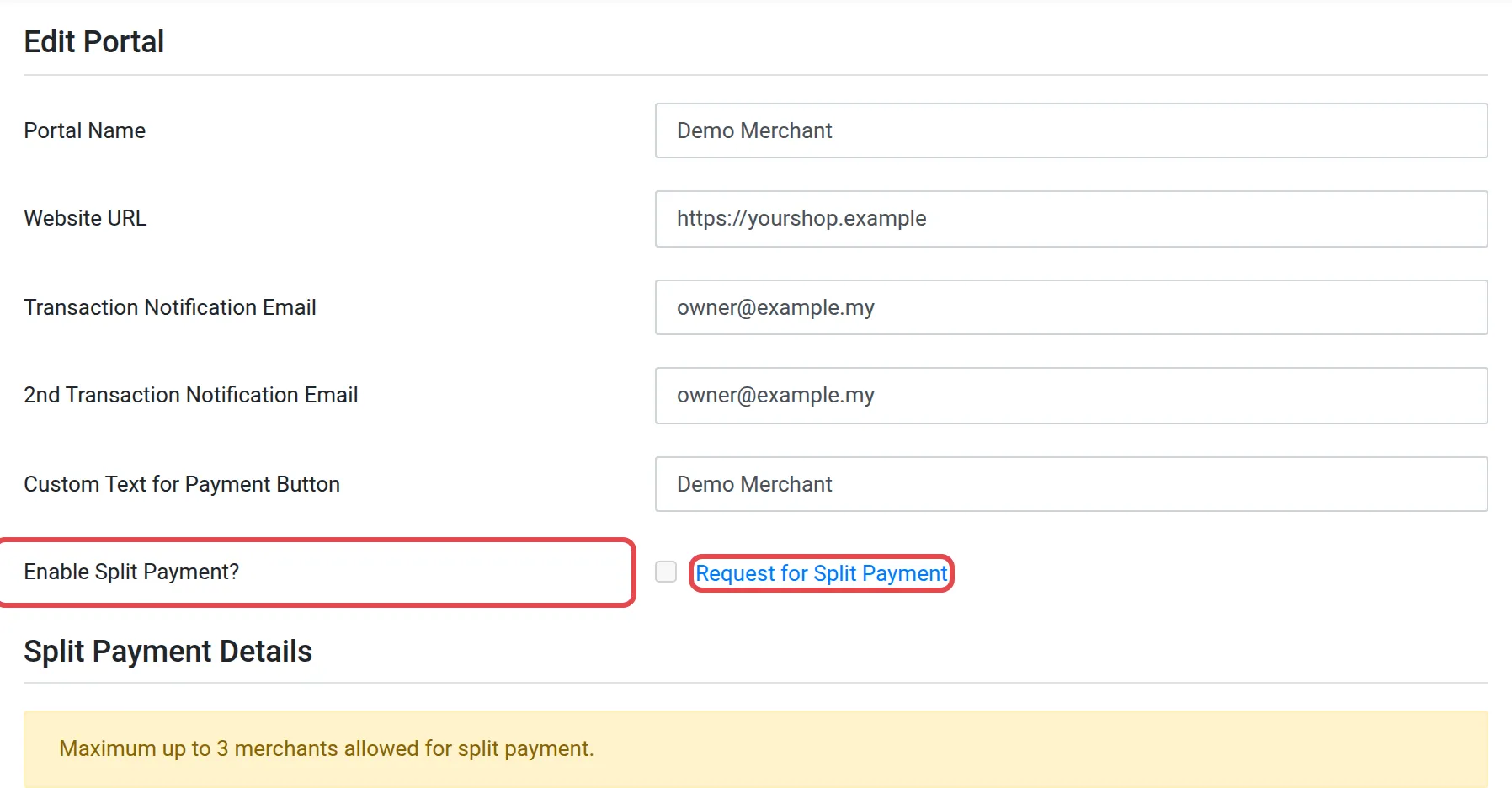
Below the box, the Split Payment Details section says: “Maximum up to 3 merchants allowed for split payment.”
Follow your requests and split payouts
Section titled “Follow your requests and split payouts”Two other screens show split payments:
- Portals → Split Payments in the top menu opens the page for split payment applications. If your account does not have split payments, this page shows “Access denied.”
- On the Payouts page, Advance Filter has a Payout Type filter. Choose Split Payout to see only the payouts from split payments. See Payouts to your bank account.
To create a portal, see Create and use portals.
Common issues
How many merchants can share one payment?
Up to 3. The Edit Portal page says: "Maximum up to 3 merchants allowed for split payment."
The Enable Split Payment? box is grey. Why?
You cannot tick it yourself. Choose Request for Split Payment next to it to ask Bayarcash to turn it on.
Was this article helpful?
Thanks for your feedback.
Sorry this didn't help. WhatsApp us and we'll sort it out with you.