

View pageas Markdown ChatGPT
 Claude
 Perplexity
 Google AI Mode
 Microsoft Copilot
 Grok
Grok Mistral Le Chat
Ask an AI about this page
ChatGPTClaudePerplexityGoogle AI ModeMicrosoft CopilotGrokMistral Le ChatCreate a payment in the merchant dashboard
Add New Transaction starts a payment from the merchant dashboard. You type the details of the customer and the amount, then choose a payment channel.
Create a payment
Section titled “Create a payment”You need the Portal Key of the portal that receives the money.
- Sign in to the merchant dashboard.
- In the top menu, choose Transactions, then choose Transactions again.
- Choose Add New Transaction. A Transaction Details form opens.
- Fill in the fields. The table below gives each field.
- Under Choose Payment Channel, choose the button of the payment channel.
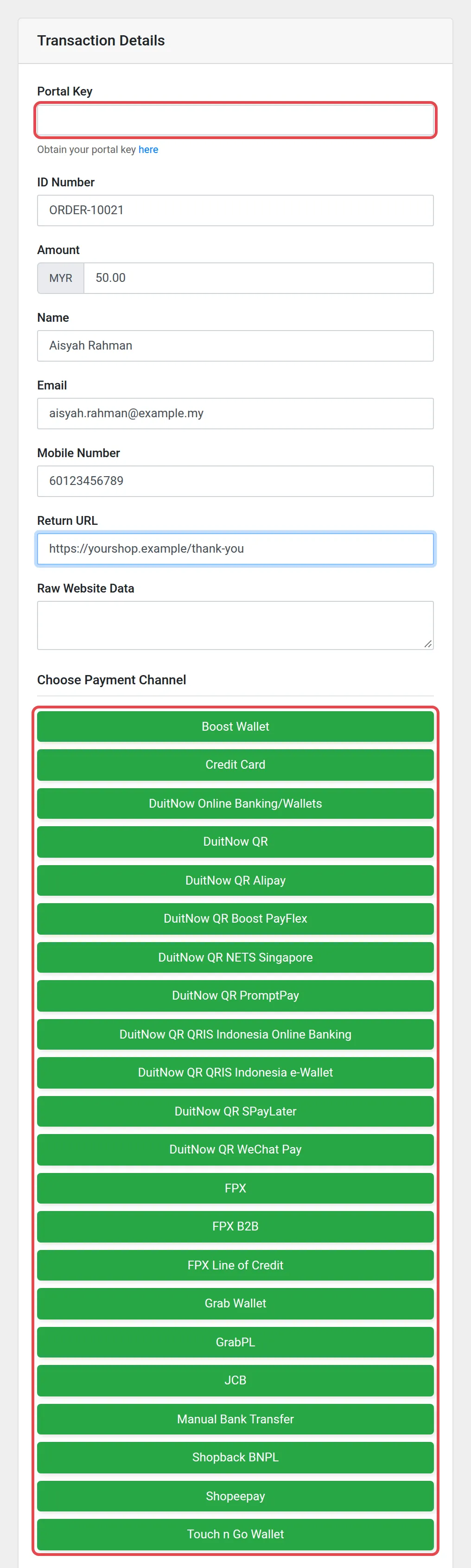
The form has these fields:
| Field | What to type |
|---|---|
| Portal Key | The key of the portal that receives the money. The link here shows where to find it |
| ID Number | Your own reference for the payment, for example an order number |
| Amount | The amount in MYR |
| Name, Email and Mobile Number | The details of the customer |
| Return URL | The page that opens after the payment |
| Raw Website Data | Extra data from your website, if you have it |
Common issues
Where do I find the Portal Key for the form?
Under the Portal Key field, choose the link here. Or see Find your API keys.
Where do I see the payment after the customer pays?
In Transactions, like every other payment. See Check a transaction and its status.
Was this article helpful?
Thanks for your feedback.
Sorry this didn't help. WhatsApp us and we'll sort it out with you.