

Ask an AI about this page
 ChatGPT
 Claude
 Perplexity
 Google AI Mode
 Microsoft Copilot
 Grok
Grok Mistral Le Chat
Update your profile
The Profile page holds the details of your merchant dashboard account and of your organisation. You can change some of them. Your account manager changes the others.
Change your email, password or contact person
Section titled “Change your email, password or contact person”Do this when a staff member leaves, or when you want a new password.
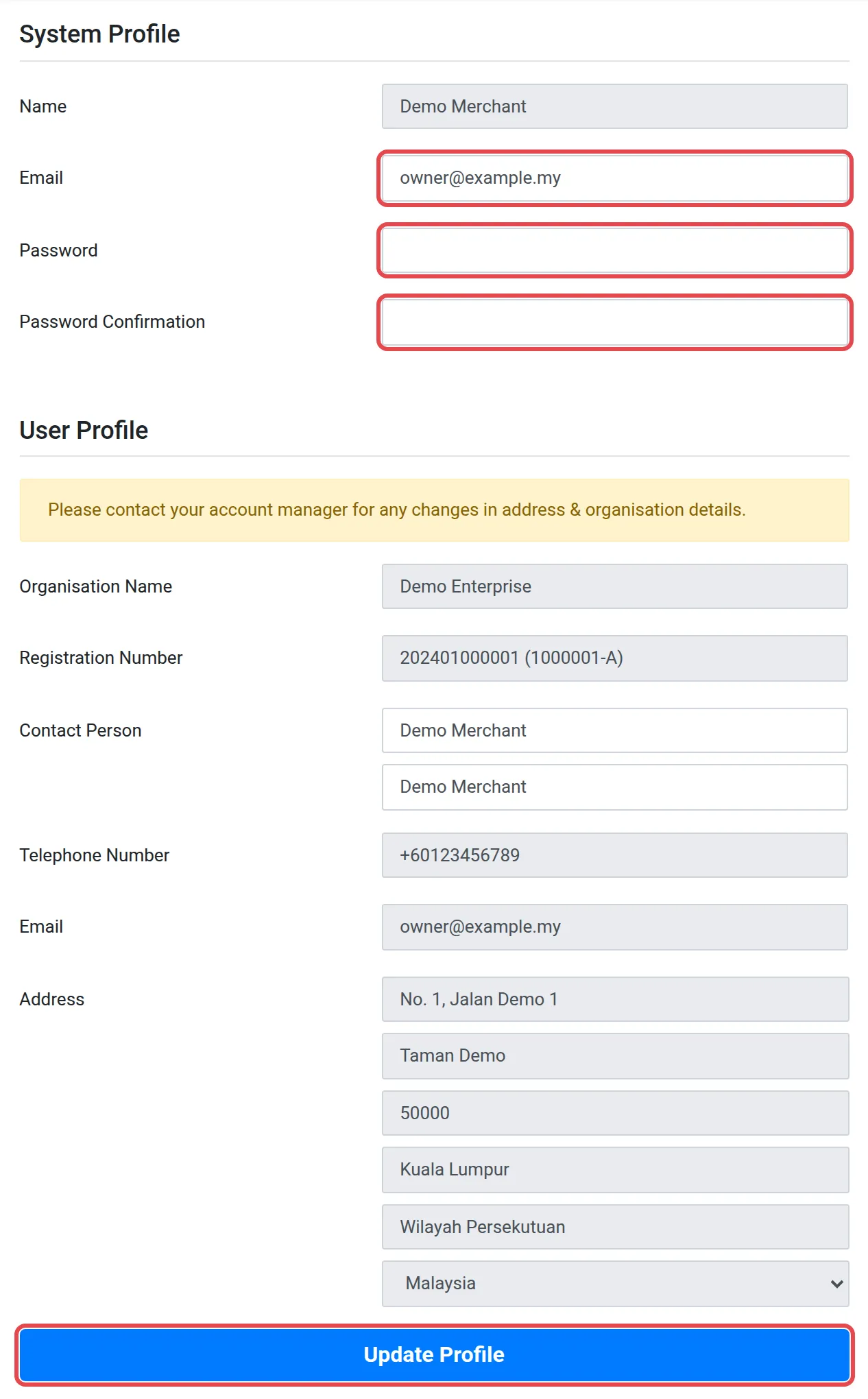
- In the top menu, choose Profile, then choose Profile again.
- In System Profile, change Email if necessary.
- To set a new password, type it in Password and in Password Confirmation.
- In User Profile, change Contact Person if necessary.
- Choose Update Profile.
Details that only Bayarcash can change
Section titled “Details that only Bayarcash can change”The User Profile section shows your organisation details. These fields are grey, and you cannot change them:
| Field | What it holds |
|---|---|
| Organisation Name | The name of your registered business |
| Registration Number | Your business registration number |
| Telephone Number and Email | The contact details of your organisation |
| Address | Your business address |
The page says: “Please contact your account manager for any changes in address & organisation details.” The Name in System Profile is also grey.
To see the bank account that receives your payouts, see Check your payout bank account.
Common issues
How do I change my company address or registration number?
You cannot change them in the merchant dashboard. Contact your account manager. The User Profile section also says this.
How do I change my password?
On Profile, type the new password in Password and in Password Confirmation. Then choose Update Profile.
Was this article helpful?
Thanks for your feedback.
Sorry this didn't help. WhatsApp us and we'll sort it out with you.