

View pageas Markdown ChatGPT
 Claude
 Perplexity
 Google AI Mode
 Microsoft Copilot
 Grok
Grok Mistral Le Chat
Ask an AI about this page
ChatGPTClaudePerplexityGoogle AI ModeMicrosoft CopilotGrokMistral Le ChatCheck your Direct Debit billing files
The Collection Billing Files page lists the billing files of your Direct Debit collections. Each file has a billing date, a batch ID and a total amount.
Open the billing files
Section titled “Open the billing files”To see the list of billing files:
- Sign in to the merchant dashboard.
- In the top menu, choose Transactions, then choose Billing Files.
- To find one file, choose Advance Filter. Then set the Created Date Range, the Billing Date or the Batch ID.
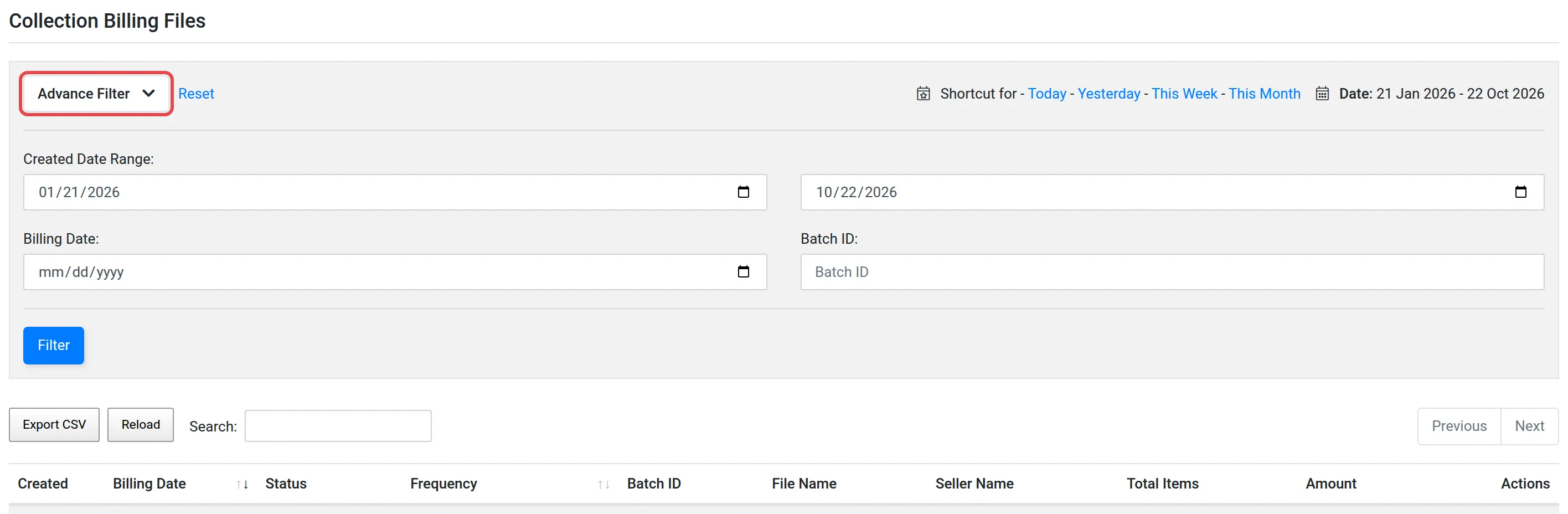
The list has these columns:
| Column | What it shows |
|---|---|
| Created and Billing Date | The date of the record, and the billing date of the file |
| Status and Frequency | The status of the file, and its deduction frequency |
| Batch ID, File Name and Seller Name | The references of the file |
| Total Items and Amount | The number of items in the file, and their total amount |
To keep a copy of the list, choose Export CSV.
To see each deduction and its result, see Check your Direct Debit transactions. For the dates of the deductions, see When Direct Debit deductions happen.
Common issues
Where are the Direct Debit billing files?
In the top menu, choose Transactions, then Billing Files.
Can I download the list?
Yes. On the Collection Billing Files page, choose Export CSV.
Was this article helpful?
Thanks for your feedback.
Sorry this didn't help. WhatsApp us and we'll sort it out with you.